
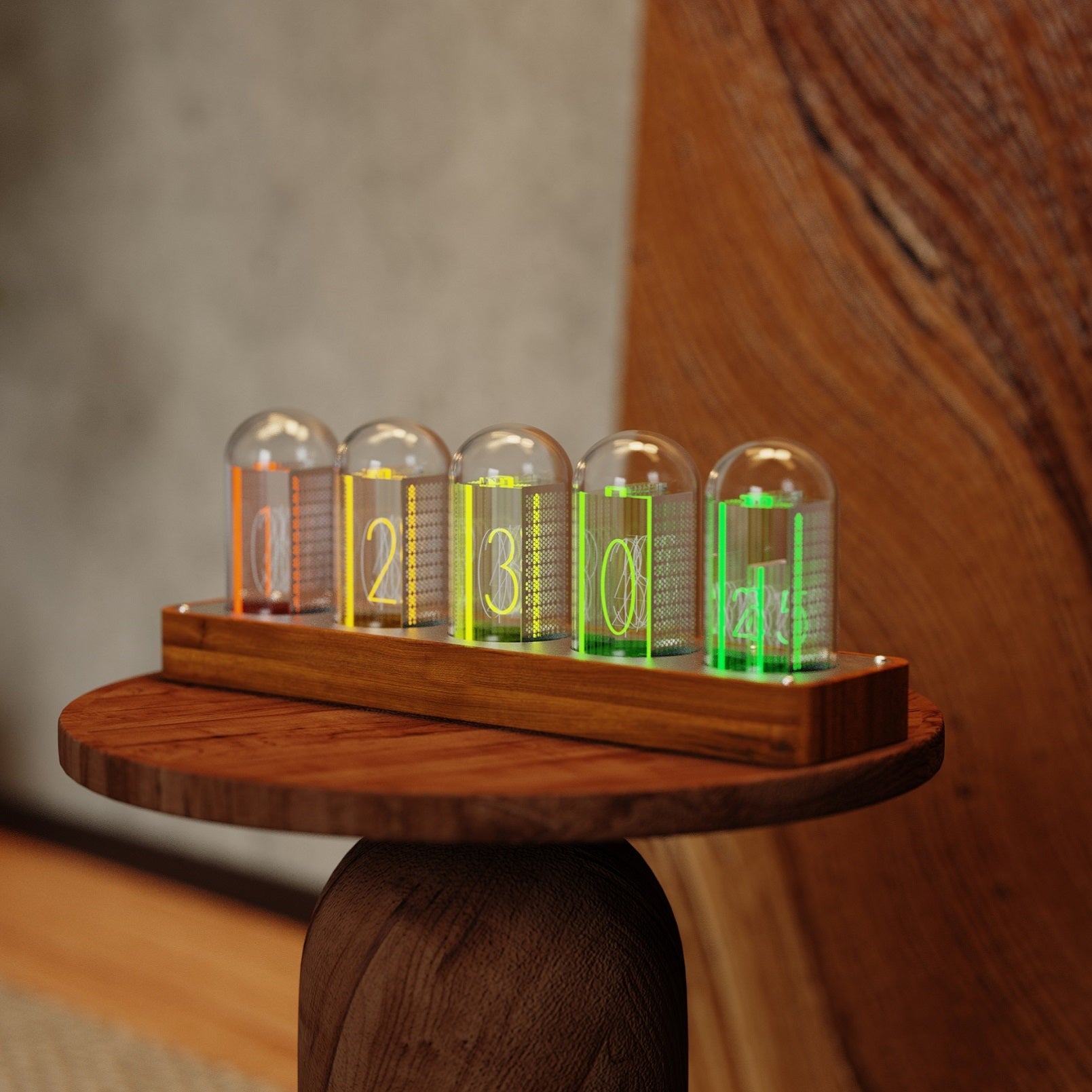
01 · Get started
Use a stable power supply.
The 4-, 5-, and 6-tube models share the same controls and Wi-Fi workflow; only their size and number of display positions differ.
00:00, or restart unexpectedly. If this happens, first test with a power adapter and USB-C cable that meet the specification.Frequently asked questions
RGB tube clock quick help
For ClocTeck 4-, 5-, and 6-tube clocks. Menu labels can vary slightly by firmware version.
How do I disable the alarm?+
Press and hold TIME until the clock turns blue. Short-press TIME twice to reach the red, flashing alarm setting, then set the alarm to 00:00. Newer firmware also lets you switch the alarm off from the phone control page.
How do I connect Wi-Fi or open the phone control page?+
After the clock starts, connect a phone or computer to the device network named ClocTeck_xxxx. The setup page usually opens automatically; if it does not, visit 192.168.18.1 in a browser. If the device hotspot asks for a password, the default is 12345678.
How do I set the time zone and daylight saving time (DST)?+
Open Time settings on the phone control page and select the local time zone or UTC offset. Enable Auto DST only in regions that observe daylight saving time. Keep it off in mainland China, Hong Kong, and Japan. Save and sync again; if these options are absent, update to the latest firmware first.
How do I stop the random or jumping display?+
The clock is probably in Mode 5, the dynamic jumping mode. Short-press MODE and enter Mode 5 again to turn off the random or jumping display. You can also choose Display settings → Normal display on the phone control page.
How do I reset the clock?+
Press and hold all four rear buttons at the same time until the clock restarts. This clears its network settings. Reconnect to ClocTeck_xxxx afterward; if prompted, the default hotspot password is 12345678.
How do I switch between 12- and 24-hour time?+
From the normal clock display, press and hold ▼ to switch between 12-hour and 24-hour time.
Can I adjust the display brightness?+
Yes. The clock has five brightness levels. Short-press ▲ from the normal display to cycle through them.
Does the phone control page support English?+
Yes. Open the control page and choose English in the upper-right corner. The control may look slightly different between firmware versions.
03 · Controls and features
Four buttons, each with a distinct role.
Short press: cycle display modes. Long press: set a custom color for each digit. Use ▲/▼ to choose a color, press MODE to advance, and the clock saves after the final position.
Short press: open a countdown timer up to 99 minutes. Long press: set time and alarm. To disable the alarm, hold until the display turns blue, short-press TIME twice, then set the red alarm screen to 00:00.
Long press: switch between 12- and 24-hour display. It lowers values while editing.
Short press: adjust brightness. Long press: begin Wi-Fi setup. It raises values while editing.
Seven display modes
- 1 Custom color
- 2 Rainbow gradient
- 3 Breathing
- 4 Flowing gradient
- 5 Dynamic jumping display
- 6 Digit-change animation
- 7 Test mode
Wi-Fi setup and time sync
- After the clock starts, connect a phone or computer to the device network named like
ClocTeck_xxxx. - Android usually opens the setup page automatically. If it does not, or on iPhone, open
192.168.18.1in a browser. - Wait for the network list, choose the home Wi-Fi, and enter its password. If the device hotspot itself asks for a password, the default is
12345678. Refresh the setup page if the list does not appear.